Conditions & Product Filtering
When setting up a Managed Collection, you can define rules to automatically include or exclude products. This guide explains how to use All Conditions, Any Condition, and Condition Grouping to fine-tune your collections.
Any Condition or All Conditions
When configuring conditions, you can choose between All Conditions or Any Condition to determine how products are filtered into your Managed Collection.
- All Conditions: Products must match every rule you set.
- Any Condition: Products must match at least one rule to be included.
For example, if you select All Conditions and set the rules:
- Title contains "t-shirt"
- Price is greater than €50
Only t-shirts priced over €50 will be added.
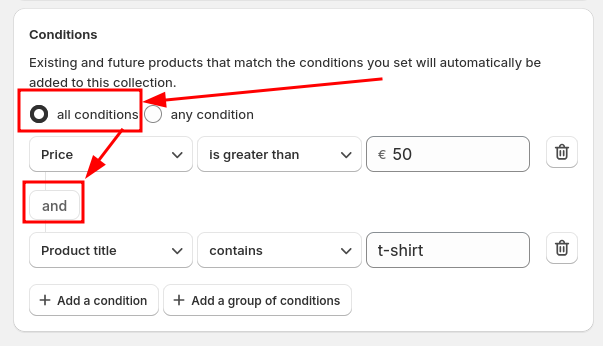
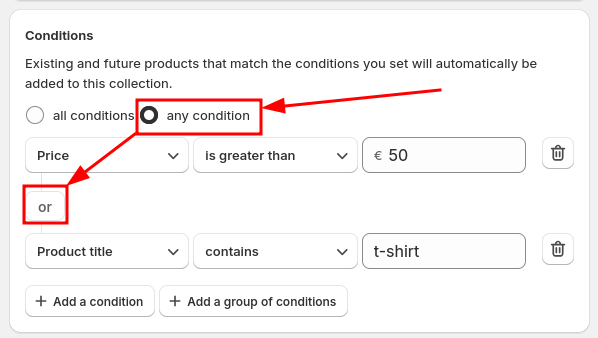
If you select Any Condition, a product needs to match either rule. This means a product will be included if it’s a t-shirt (regardless of price) or if its price is over €50 (regardless of the title).
Grouping Conditions
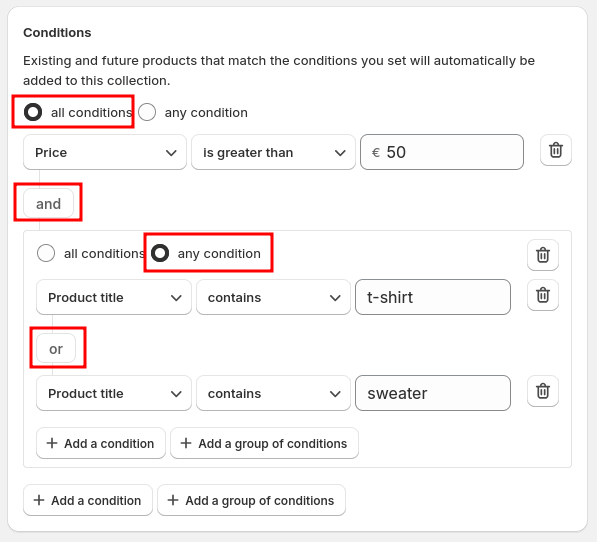
Grouping conditions allow you to mix All Conditions and Any Condition within a single Managed Collection.
For example, let’s refine the previous scenario:
- Select All Conditions
- First rule: Price is greater than €50
- Create a Condition Group with Any Condition and set:
- Title contains "t-shirt"
- Title contains "sweater"
This setup ensures only t-shirts or sweaters priced over €50 are included.
Flexible and Powerful Filtering
With these options, you can create highly customized collections that fit any situation. Whether you need strict filtering or a more flexible approach, Smart Collection Pro gives you full control over your product organization.
Available Filters
Here's every field you can build a condition on, grouped by what it describes.
Product Details
- Title: Match products by name, using contains, starts with, equals, and more.
- Product type: The free-text "Type" field you set on each product.
- Category: Shopify's structured category tree (e.g. Apparel > Shirts). You can choose to include all of a category's sub-categories automatically, so picking "Apparel" also catches "T-Shirts," "Jackets," and everything underneath it.
- Vendor / Brand: The manufacturer or brand recorded on the product.
- Tags: Any of the tags attached to a product.
- Status: Active, Draft, Archived, or Unlisted.
- Media count: How many images or videos a product has. Useful for keeping products without photos out of a collection until they're ready.
Pricing
- Price: The product's selling price.
- Compare-at price: The "was" price shown with a strikethrough.
- Discount: A filter unique to Smart Collection Pro. It automatically detects products currently on sale by comparing price to compare-at price, with no manual tagging required. Use it to catch anything discounted at all, or tune it to a precise threshold like "discounted by at least 20%", and it keeps working as prices change.
Inventory & Availability
- Total inventory stock: Combined stock across all of a product's variants.
- Variant inventory stock: Stock at the individual variant level (a specific size or color, for example).
- Sellable online quantity: Another filter unique to Smart Collection Pro. Rather than raw stock counts, it reflects what's actually available for a customer to buy online right now, accounting for reservations and fulfillment status, so a collection never shows something a customer can't actually check out with.
- Inventory tracking: Whether Shopify is tracking stock for the item at all. Useful for separating digital products or services, like gift cards or warranties, which typically don't track inventory, from physical ones that do.
- Variant title: Match a specific variant by its name, like "Red / Large" (you can select multiple values at once).
- Variant SKU: Match products by SKU, using contains, starts with, equals, and more.
Both variant title and SKU can be narrowed with a "require sellable online" option, unique to Smart Collection Pro: only variants a customer can actually check out with right now will match, not just any variant with a matching name or SKU.
Dates
- Date created and Date published: Instead of fixed dates, use flexible rolling windows that stay accurate on their own: "within the last X," "within the next X," "at least X ago" (great for surfacing stale listings), "in the past," "in the future," or a fixed before/after date. Rolling windows can be set in hours as well as days, a level of precision unique to Smart Collection Pro, so you can build rules like "published in the last 48 hours," not just whole-day windows. Date and date & time metafields support these same rolling windows too.
Other Collections
- Collection membership: Include or exclude products that belong to another Managed Collection.
Custom Fields (Metafields)
Any custom field you've set up on products or variants can be used as a filter too: single-line text, lists of text, whole numbers, decimals, true/false, dates, date & time, and references to metaobjects (like a "Material" or "Size Guide" entry), whether single or multiple.
Comparison Operators
Which comparisons are available depends on the field, but you'll generally find options like equals / doesn't equal, contains / doesn't contain, starts with / ends with, greater than / less than, and is empty / is not empty. Fields that can hold multiple values, like tags, can be set to match any of or all of your selected values.