Automate with Shopify Flow
Smart Collection Pro can notify Shopify Flow whenever it adds or removes a product from one of your Managed Collections, so you can build your own automations on top of it: notify your team, update a related system, tag the product, or anything else Flow can do.
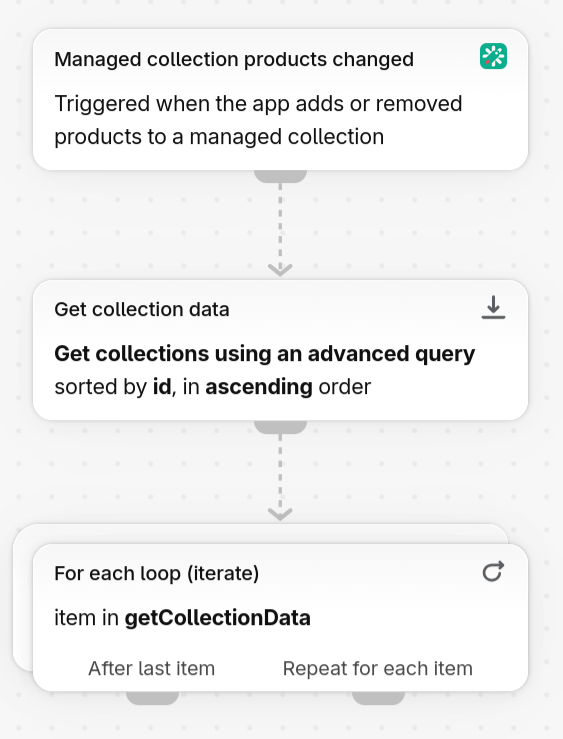
What It Fires On
The trigger fires every time Smart Collection Pro adds or removes a product from a Managed Collection, whether that's from a condition match, a hierarchy change, or any other sync the app performs on its own.
Only movements the app itself makes are tracked. If you manually add or remove a product from the collection directly in the Shopify admin, it won't trigger this automation, only changes driven by the app do. See how Smart Collection Pro manages your collections for more on the distinction between the two.
What You Get
Each time the trigger fires, it passes along two pieces of information to your Flow workflow:
- The Shopify collection's GID. The collection as it exists in Shopify. This is what you'll typically use in the rest of your workflow, for example to feed a "Find collection" action further down the line.
- The collection's ID in Smart Collection Pro. Mostly useful if you're also working with the app's API and need to reference the collection there.
What you do with that information is entirely up to you. A few ideas to get started:
- Unpublish a collection when the last product is removed from it, and republish it automatically once a product is added back, so customers never land on an empty collection page.
- Post a message to Slack or send an email when a product is added to a key collection, like a "Best Sellers" or "New Arrivals" collection.
Turning It On
This notification is off by default. To enable it:
- Open Smart Collection Pro in your Shopify admin.
- Go to Settings → Flow.
- Turn on the setting for product movement notifications.
Fastest Way: Ask Sidekick
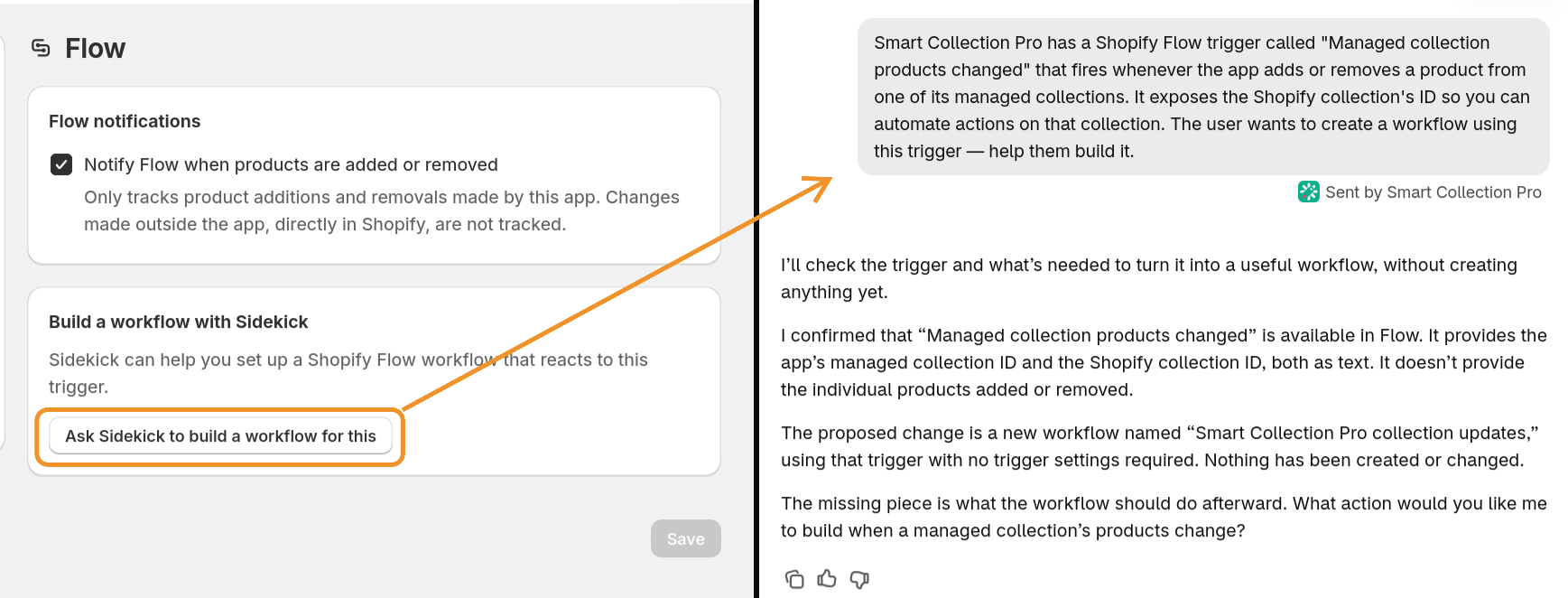
The Settings → Flow page has an Ask Sidekick button. Click it to open a pre-filled Shopify Sidekick conversation: Sidekick will ask what you want the automation to do, and build the workflow with you from there, no need to touch the Flow editor yourself.
Or Build It Yourself
Open the Flow app in your Shopify admin and start a new workflow. Smart Collection Pro's trigger will be available in the list of triggers you can choose from.
New to Shopify Flow? Shopify's guide to getting started with Flow walks you through the basics of building a workflow.
Need Something Different?
This trigger covers product movements on Managed Collections, but if you need different events or more data for your integration, get in touch with our team, we'd love to hear what you're trying to build.
FAQ
Can I use this trigger in more than one workflow?
Yes. Once it's enabled, the trigger shows up in Flow's trigger list for any workflow you build, there's no limit to how many workflows can use it, or what each one does.
Does enabling this notification slow down my collection syncs?
No. It's a notification sent alongside the app's normal syncing, it doesn't change how or how fast Smart Collection Pro keeps your collections up to date.
Do I need a specific Shopify plan to use Shopify Flow?
That depends on Shopify's own requirements for the Flow app, not on Smart Collection Pro. Check Shopify's Flow documentation for current plan availability.
I enabled the setting but don't see the trigger in Flow. What should I check?
Make sure the setting is turned on under Settings → Flow in the app, then open the Flow app and search for Smart Collection Pro when adding a trigger to your workflow. If it's still missing, reach out to us and we'll help you sort it out.