How The App Manages Your Products
Starting September 8th, 2026, Smart Collection Pro is adopting a new way Shopify lets collections be built up, to make Managed Collections more reliable. Here's what's changing and what it means for you.
A More Reliable Way to Manage Your Collections
Previously, Smart Collection Pro kept your Managed Collections up to date by adding and removing products directly on the collection: the same place where you (or a staff member) could also add or remove products by hand. This could lead to confusion, since manual changes would look fine at first, but would get reverted the next time the app synced the collection based on your conditions.
With this update, the app now creates a dedicated app source on the collection and keeps it in sync, separate from anything added elsewhere. This gives a clear separation between what Smart Collection Pro manages and everything else, so there's no more back-and-forth between manual edits and the app's synchronization.
For most stores, there's nothing to configure. Your existing conditions keep working exactly as before, and this change happens behind the scenes.
What it looks like
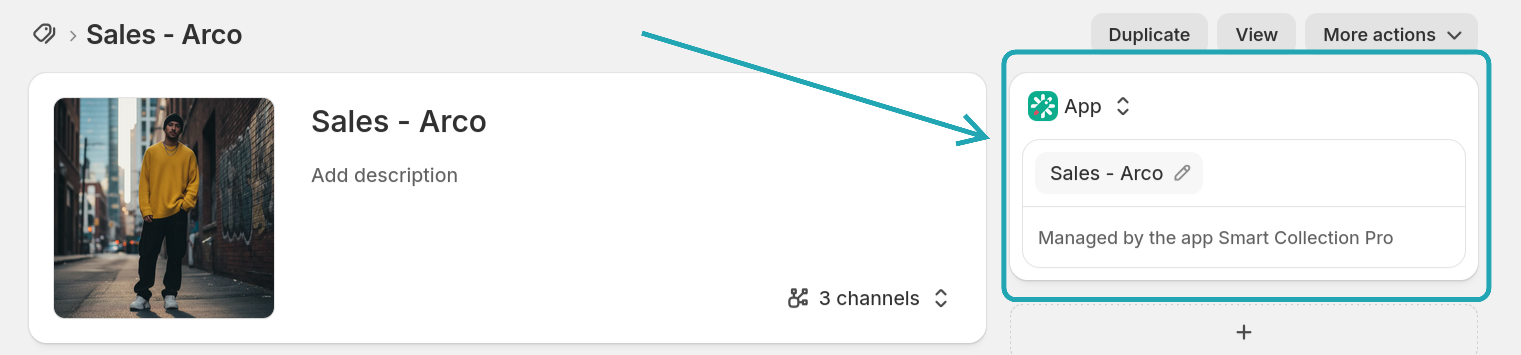
When you create a managed collection in the app, it will appear as an app source on the right.
In the example below we created the managed collection "Sales - Arco," which has an associated app source created by the app. This is what you will see when you visit the native Shopify collection:
What You Shouldn't Do
Don't manually add or remove sources on a collection managed by Smart Collection Pro (in the Shopify collection editor's Sources section). Doing so can cause the collection to drift away from your configured conditions.
If you need to change which products are included, do it through your conditions in the app rather than editing the collection directly in Shopify.
Detecting a Diverged Collection
If a Managed Collection is changed outside of the app (for example, if a source was added or removed on it directly in Shopify), Smart Collection Pro will detect it and show a warning that the collection has diverged, meaning its products may no longer be up to date with your conditions.
We're working on a dedicated repair tool to fix this from within the app. Until it's available, you can resolve it yourself by removing the extra source and re-adding Smart Collection Pro's app source to the collection. If you'd rather not do this yourself, just reach out to us and we'll fix it for you.
Creating and Attaching Collections
- Creating a new collection from the app sets everything up correctly from the start. There's nothing extra to do.
- Attaching to an existing Shopify collection replaces whatever was already populating it with Smart Collection Pro's management. As with today, you'll be warned about this on the create screen before confirming, since it can affect which products are currently in the collection.
Removing a Collection From the App
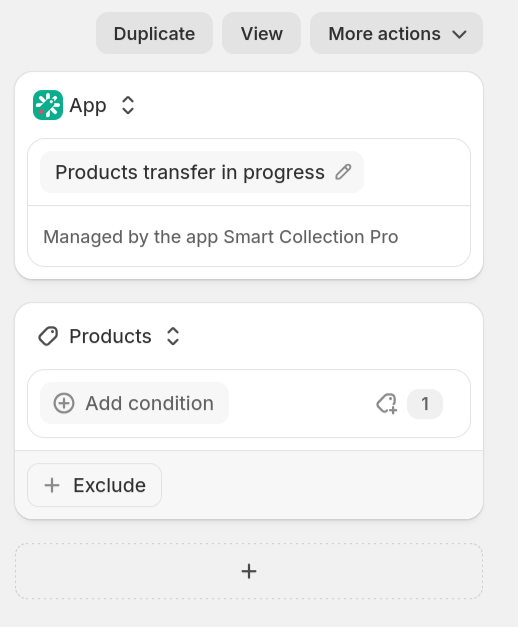
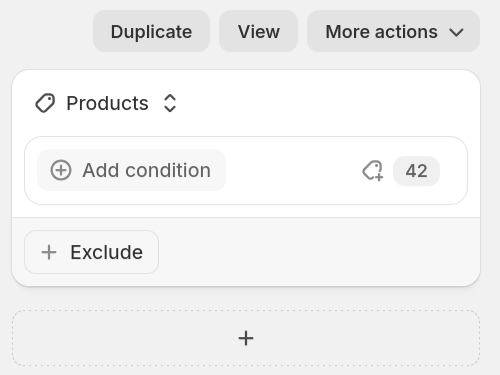
If you delete a Managed Collection from the app but choose to keep the collection in Shopify, it's handed back to you as a regular, freely-editable collection. You'll be able to add and remove products from it again, just like before it was managed by the app.
The app will transfer products from the app source to a regular source. The process can take a couple of minutes, depending on how many products are in the collection.
Once the process is complete, the app source will be removed from the collection, leaving you with the regular source fully populated:
Existing Collections
Existing Managed Collections won't change right away. We'll migrate them to this new system gradually over time starting September 8th, 2026, and no action is needed on your end.