Folders
What is a Folder?
A folder is a way to group collections together without creating a Shopify collection. Think of it as a virtual container: it holds sub-collections, but it doesn't contain products on its own and it doesn't exist in Shopify's collection list.
This is useful when you want to organize your hierarchy without creating extra collections that show up in your storefront, in search results, or in Shopify's collections. Folders can be placed anywhere in your hierarchy, whether at the root or nested under another collection or folder.
For example, say you have dozens of collections and want to group them by purpose to keep things manageable. You could create folders like:
- 📁 Seasonal Rotations
- 📁 Landing Pages
- 📁 Promotions
to organize related collections together. A Promotions folder might contain your Black Friday Deals, Cyber Monday Picks, and End of Season Sale collections. The folders make your tree easier to navigate in the app, but they don't create extra pages on your storefront that you'd then need to manage.
Scoping Filters Without Changing Your Hierarchy
Folders aren't just for visual organization. Since a folder's filters cascade down to all of its sub-collections but a folder never creates a Shopify collection of its own, you can use one to inject shared filtering logic into a branch of your tree without that scoping showing up anywhere on your storefront: no extra breadcrumb level, no extra URL, nothing for a visitor to see.
For example, if every collection under "Clearance" should exclude out-of-stock products, you could add that condition once on a "Clearance" folder instead of repeating it on each sub-collection, and no visitor-facing page gets created for it.
How Folders Differ from Regular Collections
| Folder | Regular managed collection | |
|---|---|---|
| Creates a Shopify collection | No | Yes |
| Contains products directly | No | Yes |
| Appears in breadcrumbs | No | Yes |
| Counts toward your collection limit | No | Yes |
| Can have sub-collections | Yes | Yes |
| Can have filters | Yes | Yes |
| Filters apply to sub-collections | Yes | Yes |
Creating a Folder
1. From the collection list, click Create managed collection
2. Select Folder as the collection type
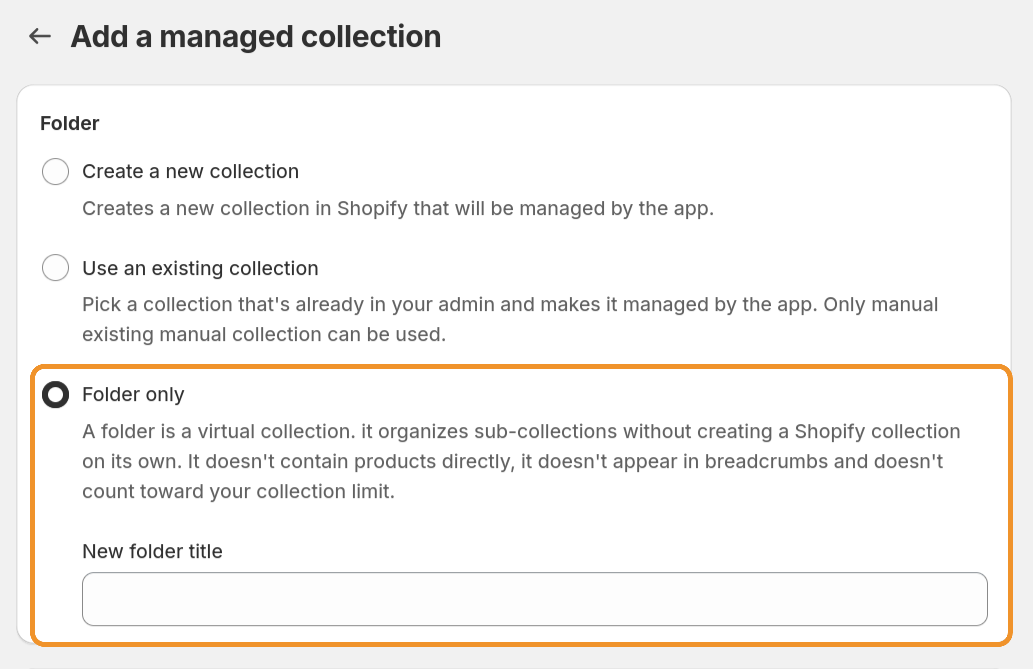
3. Give your folder a name and optionally set up filters
Any filters you define on a folder will automatically apply to all of its sub-collections. This is a convenient way to set broad conditions once and have them cascade down.
4. Save your folder
Your folder now appears in the collection list. You can start adding sub-collections to it right away, either by creating new ones or by editing existing collections to set the folder as their parent.
Pairing Folders with Collection List Navigation
If you use folders to organize your hierarchy, you may also want to enable the Root only collection list navigation mode in the app settings. Instead of showing the full tree at once, this mode displays only your top-level collections and folders. Click a folder to reveal its sub-collections, click again to edit.
This is especially helpful as your catalog grows — rather than scrolling through a long flat list, you can use folders as entry points and drill down from there.
Limitations
There are a few things to keep in mind when working with folders:
- Folders don't appear in breadcrumbs. Since they don't have a Shopify collection, the breadcrumb app block skips them and starts from the first real collection in the path.
- Folders don't have a storefront page. There's no URL to link to, because there's no Shopify collection behind them. If you need a landing page, use a regular managed collection instead.
Folders and CSV Import/Export
Folders are fully supported in the CSV import and export workflow. When you export your collections, folders are included in the CSV with a special handle prefix: scp.folder:. For example, a folder named "Winter Sales" would appear as scp.folder:winter-sales.
You can use these prefixed handles in both the collection_handle and parent_collection_handle columns, just like a regular collection handle. Unlike regular collections, folders don't need to exist in Shopify before importing since they never create a Shopify collection.
For more details on the CSV format, see CSV Import & Export.